Purpose and Applications
GermlineFamily is specifically designed to help you uncover hereditary mutations by analyzing sequencing data from multiple family members. Typically, this involves a primary patient (the proband) and one or more relatives (up to 7), but it can also be used for carrier screening scenarios, such as analyzing a couple pre-conception (RUO - Research Use Only).
It works with DNA data (in FASTQ format) obtained from gene panels or exomes prepared using capture-based methods. The primary goal is to detect small germline variants like SNVs (Single Nucleotide Variants), MNVs (Multi-Nucleotide Variants), and indels (insertions/deletions). This makes it a valuable tool in the context of inherited diseases, rare diseases, and investigating genetic predispositions to cancer (onco-genetics).
Technical Specifications
- Variant Callers: The main callers used in this pipeline are Freebayes for small variants, AluMEI for specific mobile element insertions, and GATK-Mutect2-Mitochondrial (version 2.0 or newer) for mitochondrial variants.
- Detection Sensitivity: For standard small variants (SNVs/MNVs), GermlineFamily generally targets variants with a Variant Allele Frequency (VAF) of 10% or higher. This threshold doesn't apply to Alu insertions detected by AluMEI.
- Mitochondrial Variants: Specific VAF ranges are used for mitochondrial variants: heteroplasmic calls fall between 0.10 and 0.95 VAF, while homoplasmic variants are called when the VAF is above 0.95.
Note on variant callers: If displaying the ‘CAL’ (caller) column in the variant table, you might notice that it often shows 'N/A'; this typically means the variant was called by FreeBayes, which is the default for most small variants in this pipeline. If an Alu insertion is detected, the CAL column will correctly display 'AluMEI'.
Setting Up Your GermlineFamily Project
Before launching an analysis, you need to create a project with the correct settings in the SeqOne platform:
- Ensure the Assay Type is set to 'Germline'.
- The Data type should be 'DNA'.
- Your input files must be in Fastq format.
- Select the appropriate reference Genome: GRCh37 or GRCh38 (pipeline version 2.0 or higher is needed).
- Specify the Sequencing method used, typically 'Gene panel', 'Exome', or ‘WGS’. Note that WGS is an exception to the usual family analysis (workset GermVar Family, version 3.2+).
- For panel and exome data, you'll need to import (panel) or select between pre-configured kits (WES) the correct Manifest file that defines the target regions. This isn't required for WGS.
- If your sequencing library uses Unique Molecular Identifiers (UMIs), remember to tick the 'UMI trimming' box to ensure they are removed before analysis.
Launching a GermlineFamily Analysis
Once your project is set up, you can launch the analysis from the 'Samples and Analysis' tab:
- Click the "New analysis" button.
- Select the GermlineFamily workset (use the latest version unless specific needs).
- Choose the samples you want to include – you need at least two samples (e.g., the patient and a family member).
- You must define the family relationships in the "Set conditions" section. The platform might automatically assign the 'patient' position. For other samples, select their relationship to the patient (e.g., 'Mother', 'Father') from the dropdown, or click the '+' to add custom relationships like 'Brother' or 'Sister'.
- For carrier screening tests involving a couple, you would typically select both individuals and designate them as 'Father' and 'Mother', without an index case.
- Important: The analysis cannot be launched until this "Family Link" information is correctly filled in for all relevant samples.
- Also, pay attention to the 'affected' status checkbox for each individual. This status is used by the DiagAI scoring system (if applicable) to prioritize variants based on disease concordance within the family, and it cannot be changed after the analysis has started.
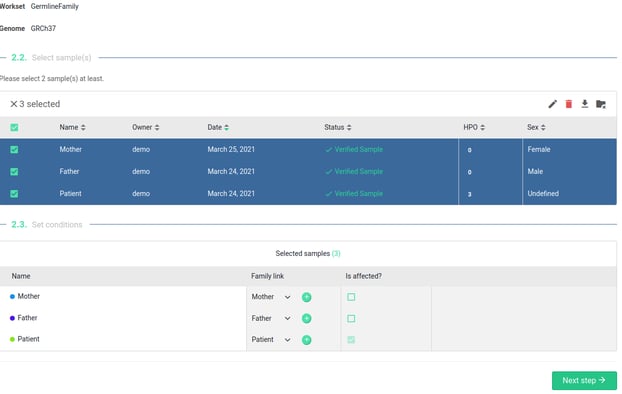
- Once relationships and affected statuses are set, click "Next Step" and then "Start analysis".
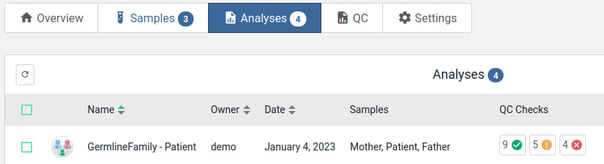
Naming Convention: You'll notice analysis names follow a pattern. For standard family analyses with a patient, it usually looks like "Germlinefamily - [Patient Identifier]". For pre-conception carrier screening tests, it will often be "GermlineFamily - [Identifier] - Carrier Screening".
Quality Control Checks
After the analysis runs, you can review quality control metrics
Project QC Tab
This tab provides standard QC metrics calculated based on the coverage of regions defined in your manifest file (considering +/- 100bp flanking regions).

Analysis QC Tab
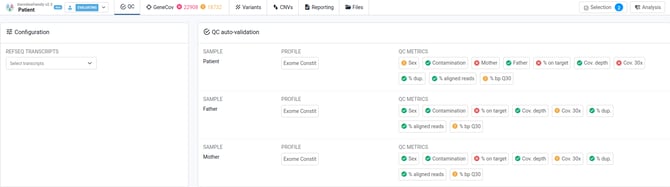
When opening an analysis, this tab presents you with general QC for the sample (% on-target reads, coverage, quality, etc).
-
- In Germline worksets and in particular Family analyses, we display additional QC metrics related to sample integrity and identity:
- Family link : as defined by the user when launching the analysis.
- Original sex: sex-related metadata entered by the user (Male/Female/Unknown).
- Detected sex: sex detected (Male/Female/Unknown), with a warning if not matching the user input.
- Relationship coefficient : relationship coefficient calculated using the Somalier tool for each sample in the family analysis, with a warning if it doesn’t match the user input. Note that this metric displays N/A for the sample itself.
- Contamination: estimated percentage of sample contamination by foreign DNA, using the verifyBamID2 tool.
- In Germline worksets and in particular Family analyses, we display additional QC metrics related to sample integrity and identity:
Gene Coverage
Navigate to the GeneCov tab for detailed coverage information. GermlineVar uses specific coverage thresholds to classify regions:
-
- For Panel analyses: Failed (< 30X), Warning (30X-100X), Covered (> 100X).
- For Exome analyses: Failed (< 10X), Warning (10X-30X), Covered (> 30X).
- You can contact our Customer Care team to set up custom thresholds for your project.
Exploring Variants in the Viewer
The 'Variants' tab is where you'll spend time reviewing the findings. Expect to see a range of variants, from perhaps 100 to over 1000 for a gene panel, and potentially over 100,000 for exome data. Each row represents one variant.
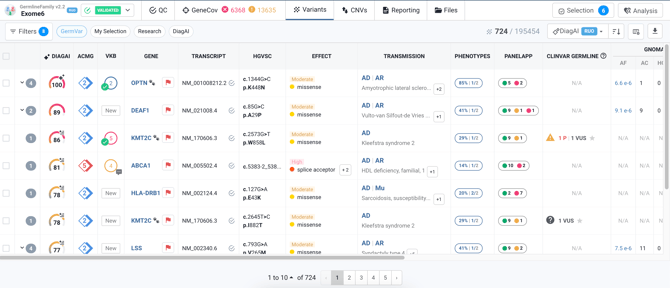
- VAF Threshold: Remember, variants displayed here generally have a VAF of 10% or more (unless detected by AluMEI).
- Filtering: Various filters and customizable filter profiles are available to help you narrow down the list. These profiles can be shared within your team/entity. For exome analyses, the "GermVar" profile is applied by default.
- Sorting: You can sort variants by criteria like DiagAI score (default), ACMG classification, Allele Frequency, or Genomic Locus.
- GermlineFamily Specific - Genotype (GT) Column: This column offers unique insights into Mendelian transmission for heterozygous variants, visualized with color overlays:
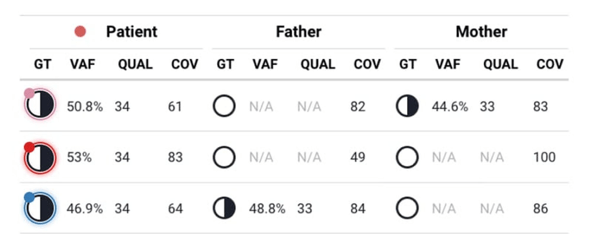
- Pink: Indicates maternal inheritance (heterozygous variant passed from the mother).
- Blue: Indicates paternal inheritance (heterozygous variant passed from the father).
- Red: Suggests a de novo heterozygous variant (present in the patient but not detected in either parent).
- Orange: Flags a Mendelian violation (an unexpected inheritance pattern).
- No color: Appears if inheritance cannot be determined (e.g., both parents are heterozygous) or if the variant is homozygous in the patient.
GermlineFamily-Specific Filter Profiles
GermlineFamily includes all classic SeqOne filtering options. Additionally, several pre-configured filter profiles are designed specifically for family analyses:
- De Novo: Helps identify potential de novo variants.
- Hom Recessive: Filters for variants consistent with homozygous recessive inheritance.
- Het Compound: Filters for variants consistent with compound heterozygous recessive inheritance.
Note: These three profiles (De Novo, Hom Recessive, Het Compound) are primarily designed for and most effective with trio analyses consisting of an affected patient (index case) and their unaffected parents.
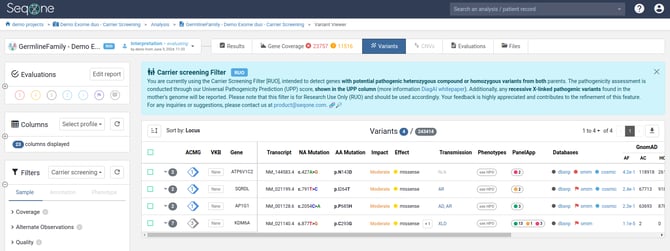
- Carrier Screening (RUO): This profile is for pre-conception testing scenarios. It highlights potentially pathogenic variants in recessive genes where both parents are carriers (either compound heterozygous or homozygous). Pathogenicity is evaluated using the UPP score, and it will also flag any potentially pathogenic X-linked recessive variants carried by the mother.
Understanding and downloading the Output Files
In the 'Files' tab of your analysis, you'll find several useful outputs:
- VCF (Variant Call Format) files:
final.vcf.gz: This is the key VCF file containing all the variants displayed in the main variant viewer interface (note that it typically excludes the AluMEI variants).variants.alumei.vcf.gz: Contains all Alu insertion variants detected by the AluMEI tool.freebayes_prevariants.vcf.gz: Includes all variants initially called by Freebayes before final filtering.
sample_genecov.v2.tsv.gz: A detailed file containing comprehensive coverage analysis data for each sample, including metrics per transcript and exon (like average/median coverage and percentage of bases covered at different depths).- BAM files (
.bamand.bam.bai): The standard alignment files containing all the sequencing reads mapped to the reference genome. These are essential for visualizing alignments in external viewers like IGV desktop. min.bamandmin.bam.bai: These are "lightweight" BAM files containing only the reads located near the identified variant positions. They are used by the platform's built-in IGV viewer for quicker loading.