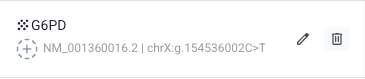
The Selection panel groups all variants you wish to highlight for reporting. It can be accessed at any time via the side panel icon in the analysis, and is used as the basis for generating a clinical report or JSON file.
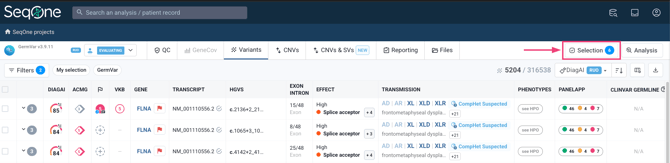
1. Automated Selection
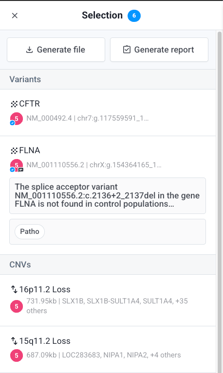
Small Variants that have already been evaluated in the VKB are automatically available in the Selection panel.
💡 CNVs validated in the VKB are also available in the Selection panel, but only for Germline Exome, Genome, and CGH MicroArray analyses.
2. Manual Selection
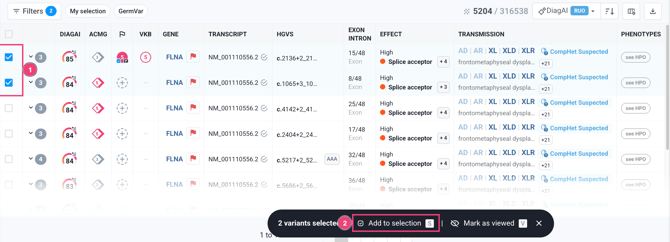
To manually add variants to the Selection, check the boxes on the left side of the variants table for the desired variants, then click the "Add to selection" icon at the bottom of the table or press the S key.
⚠️ Note: Variants must have a confirmed VKB classification to be included in the clinical report. Manual selection without evaluation is intended for JSON exports, or to track/flag variants within your analysis.
3. Removing Variants from the Selection
If you need to remove a variant from your report or export list:
-
Open the Selection panel via the side panel icon.
-
Hover your mouse over the variant you wish to remove, and Click the Bin icon 🗑️ that appears.
💡 Note for VKB Variants: If the variant has a classification in the VKB, a tooltip will prompt you to remove the evaluation and/or the comment before the variant can be removed from the selection.