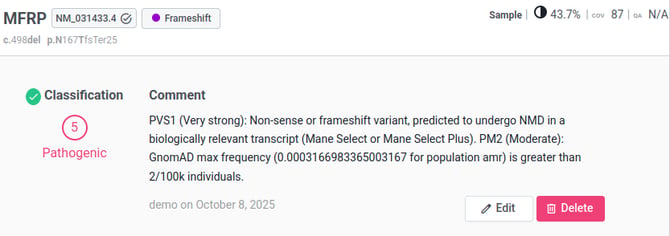
The VKB (Variant Knowledge Base) is an organization's personal database of variants, allowing users to evaluate analyzed variants according to multiple criteria. This knowledge base is shared among all users within the same organization.
How to evaluate variants in the VKB
Users have two ways of evaluating variants and enriching their organization's VKB.
-
Evaluate from the VKB column in the variants table
The "New" icon indicates a variant not yet annotated in VKB. Click "New" to open an evaluation window where you can classify the variant in the Classification tab or add comments in the Comment tab.
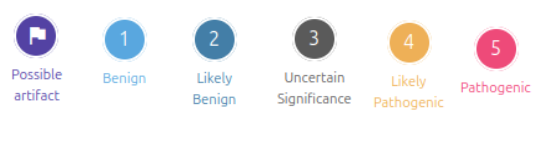
Various icons show that a variant is already annotated in VKB but in a different analysis than the current one. Variants can be classified as Possible artifact, Benign (1), Likely benign (2), Uncertain Significance (VUS) (3), Likely Pathogenic (4), or Pathogenic (5).
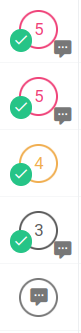
A green check mark in the bottom left corner of an icon indicates that the variant has been evaluated in the current analysis, or that a previous evaluation has been validated for this analysis.
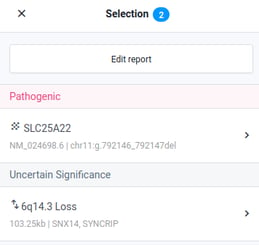
Validated variants and their comments appear in the Selection panel at the top right of the variants table and are automatically included in the clinical report. These evaluations and comments are accessible to all users within the same organization.

The absence of a green check mark indicates that the evaluation comes from previous analyses. To validate or edit this evaluation, click on the classification icon and select either "Edit" or "Validate evaluation".
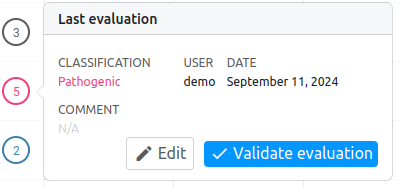
Variant evaluations in VKB are reversible, modifiable, and dated to maintain traceability of analyzed variants in your organization. Previous ratings of a variant are visible in the Evaluations tab of the variant viewer (see section below).
-
Evaluate from the variant details page for the variant of interest
By clicking on a variant in the variants table, a side panel opens. In the Evaluations tab, you can annotate the variant or add a comment.
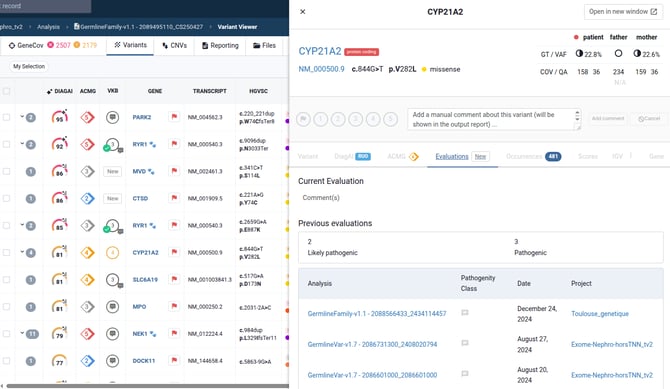
The upper part of the tab allows you to evaluate the variant.
For a new variant, click the icon that matches your evaluation (either the artifact flag or classifications 1-5). If needed, add a comment in the "Add a manual comment about this variants" field.
If the variant is already annotated, you can modify its evaluation or add a comment by clicking on "Edit" or delete the evaluation by clicking on "Delete”.